Washington Gardener Certificate
Refund policy reminder We understand that plans can change and unexpected things come up. However, please note that we’re unable to offer refunds for Green School courses once registration is complete.
Step 1
Follow the Extension Foundation catalog link (this link will open in a new tab) to the WSU Extension Green School – Washington Gardener Certificate 2026-2027 course.
Scroll to the bottom of the page to select the orange BUY NOW box.

Step 2
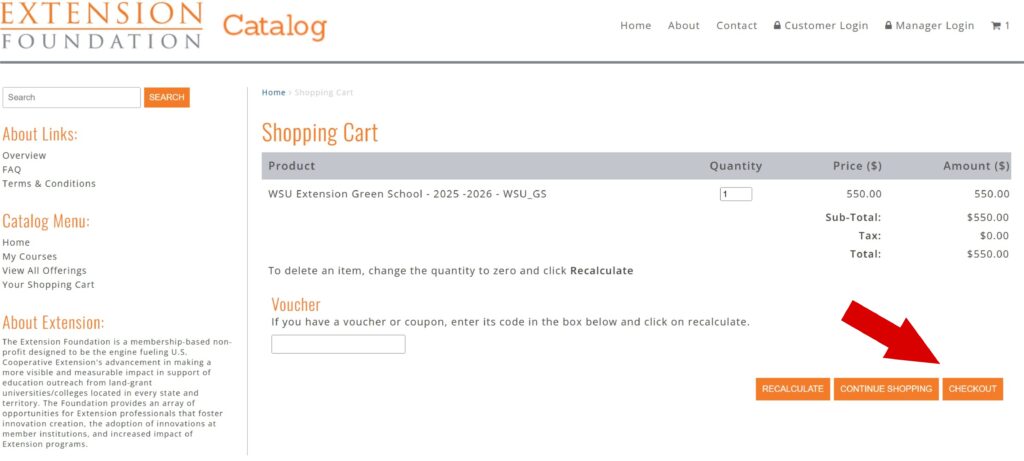
Selecting the BUY NOW box will navigate you to a Shopping Cart. Select CHECKOUT.
Step 3
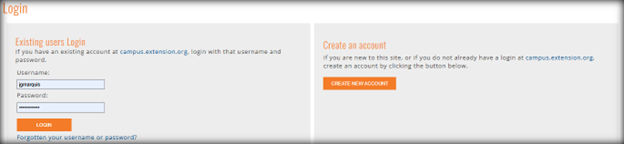
You will navigate to the Login page where you may create an account. If you already have an account, log in as an existing user with your username and password and proceed to Step 5.
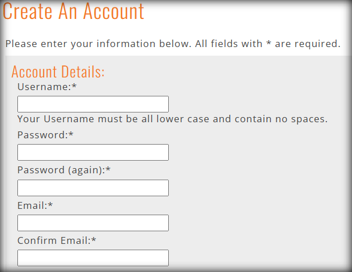
If this is your first time here, select the CREATE NEW ACCOUNT button. During account creation, pay close attention to detail. Be certain to enter everything carefully and accurately. Click the box to confirm you are not a robot and then select the CREATE ACCOUNT button.
TIP 1: Document your username and password to facilitate future login.
TIP 2: This is the email address we will use to communicate with you.
TIP 3: The first and last name you enter here is the name that will be printed on your Washington Gardener Certificate.
Tip 4: When creating a new account, you’ll need to verify your email before you can continue. After you click the verification button, the system sends a one‑time code to your email. Enter that code in the box provided and click VERIFY to move forward. If anything on the page needs correcting—such as a password that doesn’t meet their requirements—you’ll be asked to repeat the email‑verification step again after fixing the error.
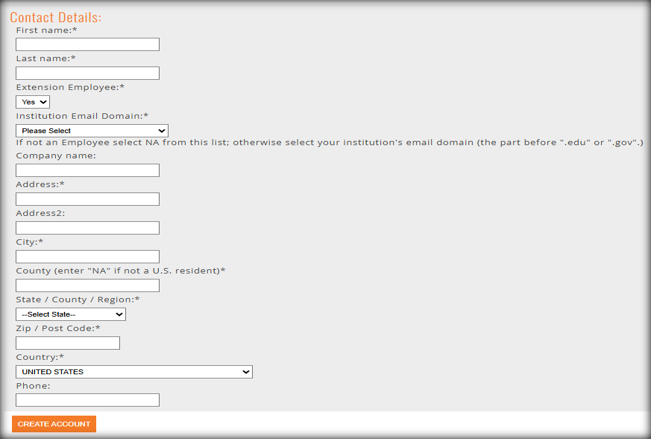
Important: county field instructions
In the Contact Details box, in the County field:
- If you’re not a U.S. resident, enter “NA.”
Step 4
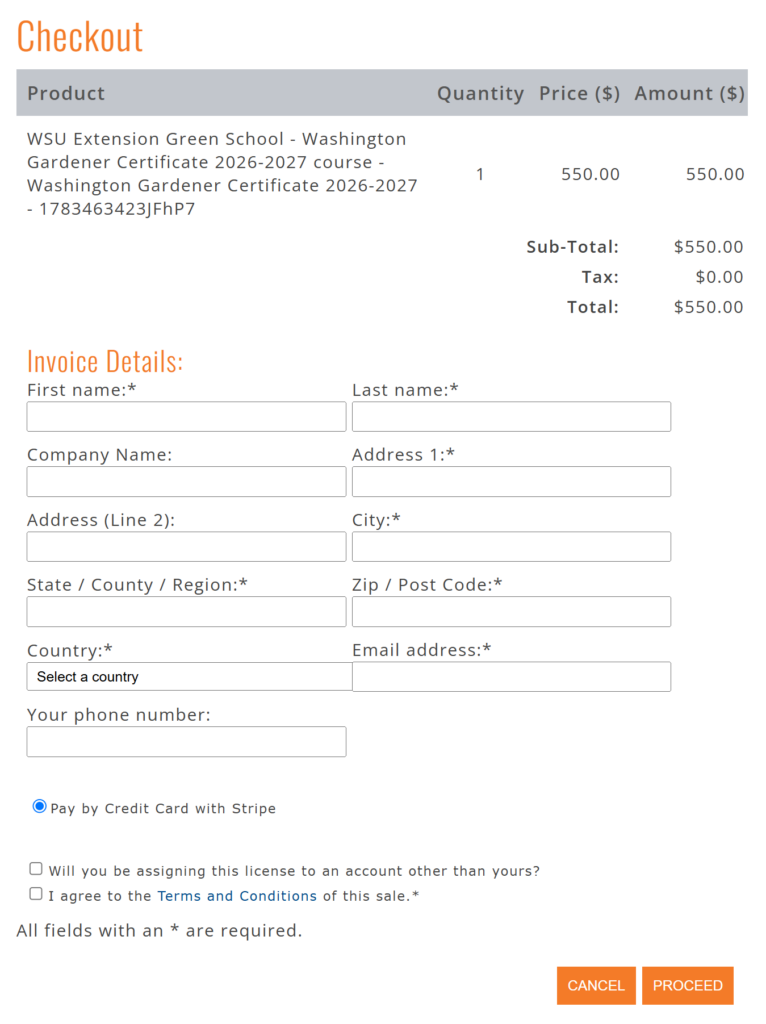
Whether you created a new account or logged in with an existing account, you will now complete the invoice details on the Checkout page. When finished, check the box to agree to the Terms and Conditions. Make sure the invoice details are correct and select PROCEED.
Stripe is a secure, industry‑standard payment processor used by many organizations. We use Stripe to safely handle credit card payments, which is why you’ll see a brief verification step before entering your payment details.
When you begin the payment process, Stripe will send a one‑time verification code by text message or email. Enter that code in the verification box and submit it to continue.
If you’ve used Stripe in your browser before, your payment details may already appear automatically. Otherwise, click “+ Add a new payment method” and enter your credit card information manually.
*If you are paying as a guest, DO NOT enter your email address in this box. Click on Pay with Debit or Credit Card.
Step 5
Click the button to agree to the cookie policy. Click to take the site tour if this is your first time here or skip if you don’t need it.
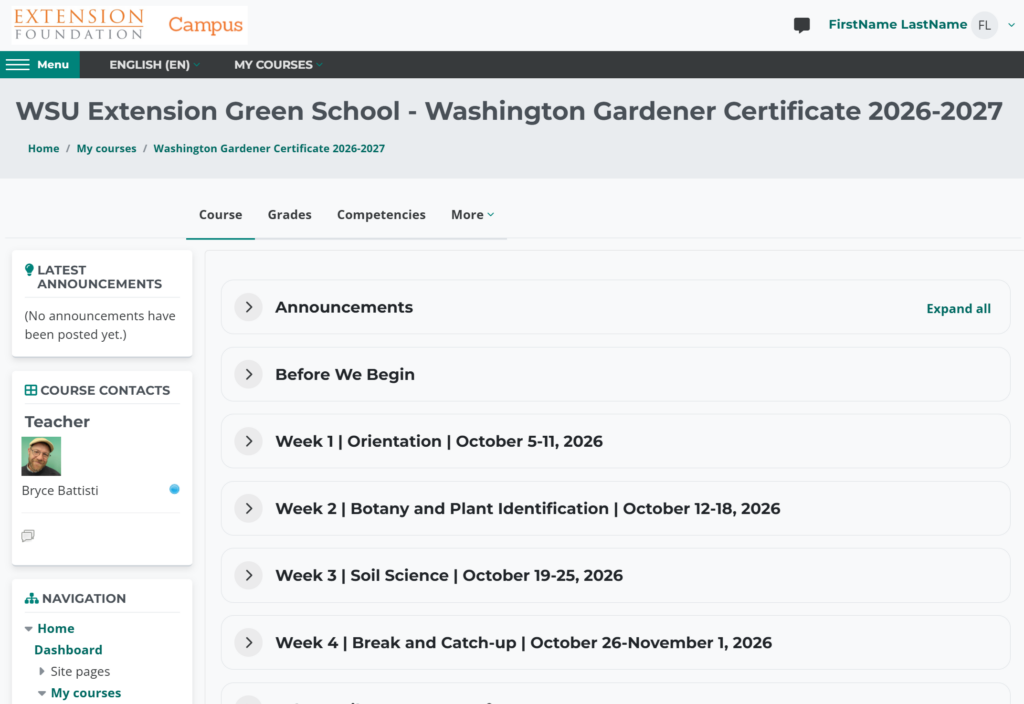
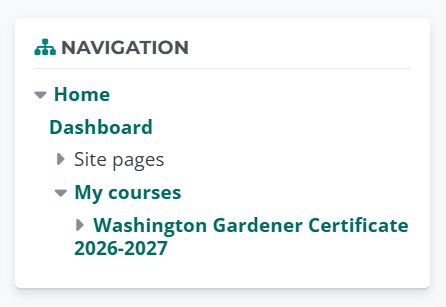
The name of this year’s course in the Navigation menu will be Washington Gardener Certificate 2026-2027.
Step 6
The full Green School course will open on October 5, 2026. Start now with “Before We Begin”. These resources are available immediately and include orientation activities to help you:
- Preview the textbook
- Navigate Moodle
- Access Zoom
- Familiarize yourself with course tools in a practice activity
- Dive in and enjoy the journey!